Start recording
A floating highlight toolbar is available while you record - no separate app or setup.
Spotlight, draw, arrow, circle, and blur - live, while you record. The marks are captured directly in the video, so there's nothing to add in post. Blur really obscures the pixels underneath, so you can hide anything sensitive on the fly.
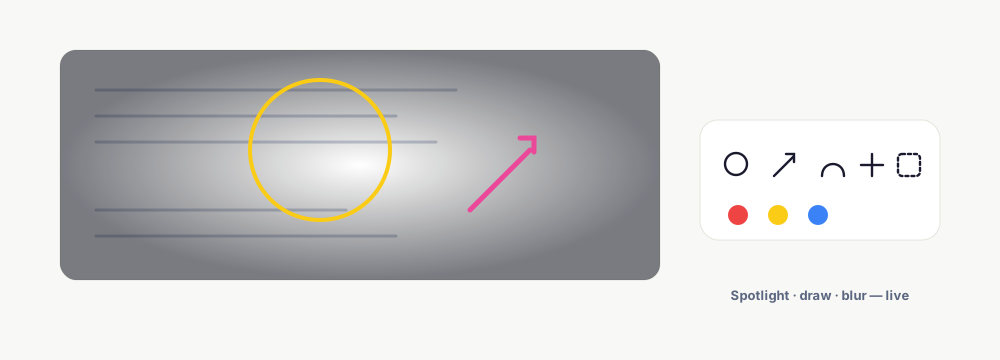
A floating highlight toolbar is available while you record - no separate app or setup.
Spotlight follows your cursor and dims everything else; pen, arrow, and circle draw directly on the page. Choose a color and go.
Everything you draw is captured as part of the recording - no post-editing. The toolbar itself stays out of the frame.
Darkens the whole screen except a bright circle that follows your cursor - perfect for drawing the eye to one thing.
Freehand pen, straight arrows, and circles to point at and ring anything on screen, in Red, Yellow, or Blue.
Drag a blur box over anything sensitive - it uses a real backdrop blur, so the pixels underneath are genuinely obscured, not just covered.
Undo the last mark or clear them all. Marks are captured in the recording, so there's no cleanup step afterward.
Keep exploring what El Ojo does — or see how the tiers work.
Yes - everything you draw (spotlight, pen, arrows, circles, blur) is captured directly in the video. There's no editing step afterward.
No. You draw live while recording and the marks are part of the file. The toolbar itself is kept out of the frame.
It dims the whole screen except a bright circle that follows your cursor, so viewers look exactly where you're pointing.
Yes - the blur tool uses a real backdrop blur that obscures the pixels underneath, so you can hide keys, emails, or personal data on the fly.
Yes - undo the last mark or clear all of them at once.
Red, Yellow, and Blue for the pen, arrow, and circle tools.
Free Chrome extension with spotlight, draw, and real blur built in - no watermark.