Stop the recording
You're presented with what to do next. Nothing has been uploaded yet - the file lives on your device.
When you stop, you own the file. Download the video, upload it straight to your own Google Drive, or send it to El Ojo Studio to trim, transcribe, caption, and share a hosted link. Nothing leaves your device unless you choose one of these.
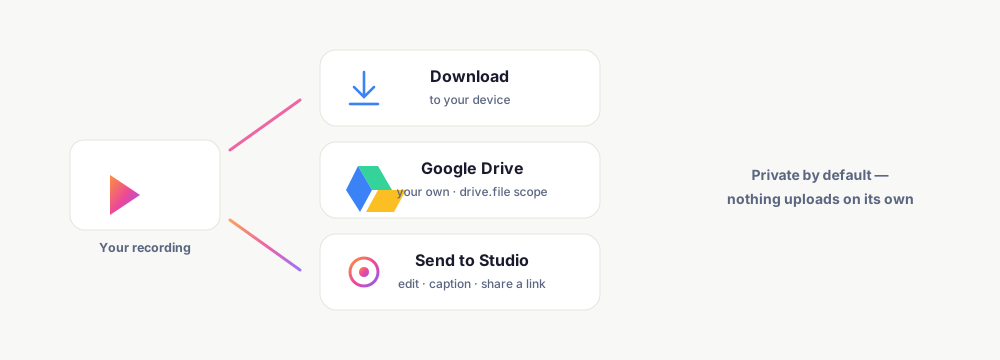
You're presented with what to do next. Nothing has been uploaded yet - the file lives on your device.
Download it locally, upload it to your own Google Drive, or send it to Studio to edit and share.
From Studio you get a hosted watch page you can send to anyone - with an optional call-to-action and viewer analytics.
Save the recording straight to your computer. Free, no watermark, no account required to record and download.
A resumable upload from your browser to your own Drive, using the narrowest drive.file scope - El Ojo can only touch files it created, never your other Drive files.
One click opens the recording in the editor: trim, transcribe, add captions and smart zoom, clean up audio, and publish a hosted link.
The recording is captured and assembled on your device. It only leaves when you pick Drive or Studio - otherwise it stays local.
The Drive integration uses the drive.file scope only, so El Ojo can't see the rest of your Drive. Revoke access anytime in your Google account.
Keep exploring what El Ojo does — or see how the tiers work.
Wherever you choose after you stop: downloaded to your device, uploaded to your own Google Drive, or sent to El Ojo Studio. Nothing is uploaded unless you pick one.
No. The Drive integration uses the drive.file scope, which only lets El Ojo see and manage files it creates - never your existing Drive files.
No. Recordings have no watermark, and you can record and download for free without an account.
It opens the recording in the browser editor, where you can trim, transcribe, caption, apply smart zoom, clean up audio, and publish a shareable hosted link.
By default yes - the extension processes everything on your device and uploads nothing unless you explicitly choose Drive or Studio.
Free Chrome extension. Download, save to your Drive, or send to Studio to share.