El Ojo Chrome extension: what it is and how it works
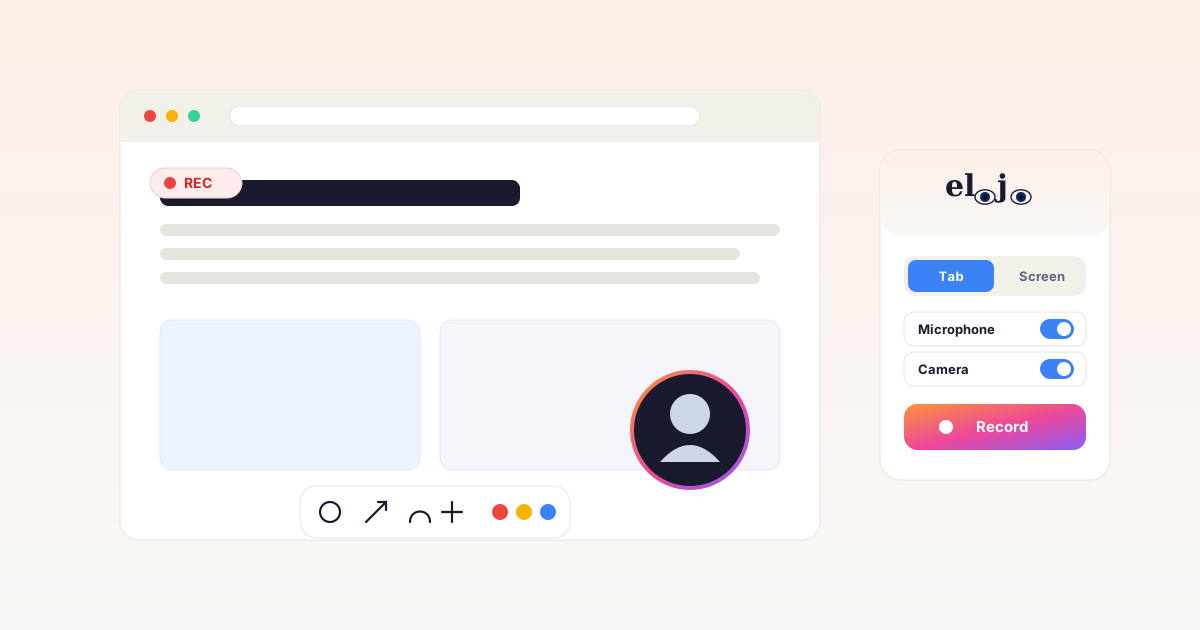
El Ojo is a free Manifest V3 Chrome extension that records your screen (tab, window, or full display) with microphone, webcam bubble, and on-screen highlight tools, then saves the video locally, to your own Google Drive, or to El Ojo Studio for AI captions and sharing - with no watermark and no sign-up required to record.
El Ojo is a free screen recorder that runs as a Chrome extension. You click record, it captures your browser tab, an app window, or your whole screen - together with your microphone and webcam - and hands you a finished video. There is no desktop app to install, no watermark on the file, and no account needed to record and download.
It is built for anyone who explains things on a screen: support and product teams recording walkthroughs, teachers making lessons, founders sending async updates, and creators cutting tutorials. Below is exactly what the extension does and how each part works.
What is El Ojo?
El Ojo is a Manifest V3 Chrome extension for screen recording. "El ojo" means "the eye" in Spanish - the logo is a pair of eyes whose pupils follow your cursor. It works in any Chromium browser: Chrome, Edge, Brave, and Arc. The extension is free forever; an optional paid product called El Ojo Studio adds AI editing, captions, and hosted sharing on top of the recordings you make.
Everything the extension captures is processed on your own device and assembled into a WebM video. Nothing is uploaded to a server unless you explicitly choose one of the save options, which is what keeps it private by default.
How El Ojo works, step by step
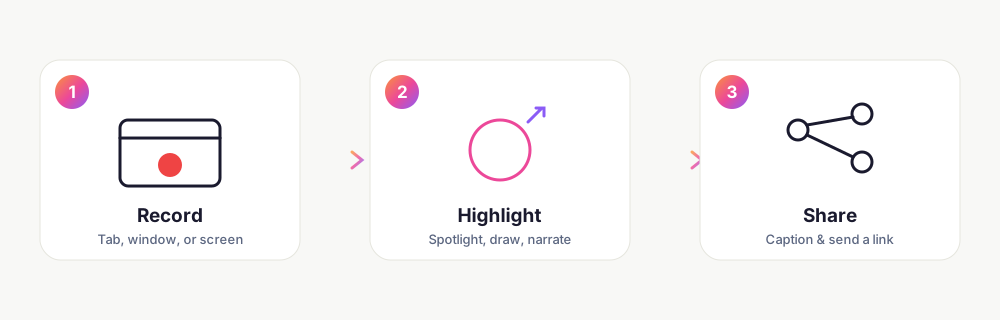
1. Choose what to record
Open the popup and pick a capture mode. El Ojo offers four, so you record exactly what you need and nothing more:
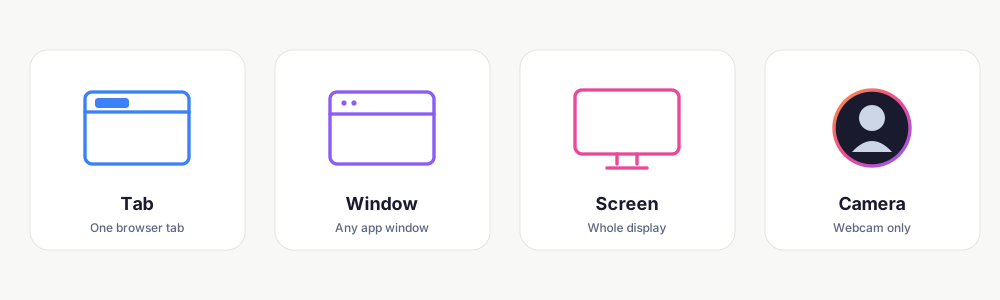
- Tab - records a single browser tab. It is the lightest mode and the only one that captures a cursor trail, which powers smart zoom later in Studio.
- Window - records one application window, including apps outside the browser.
- Screen - records your entire display, across every app and your desktop.
- Camera - records just your webcam, full-frame, for an intro or a talking-head clip.
2. Turn on mic, camera, and highlights
Toggle your microphone to narrate and your camera to add a face. The camera appears as a draggable bubble on the page - powered by AI selfie segmentation so you can blur or swap the background - and it stays exactly where you drag it in the final recording. While recording, the highlight toolbar lets you spotlight, draw, add arrows, and circle things directly on screen. Those marks are captured as part of the video, so there is no editing step afterward.
3. Record - with layouts you can switch live
Press record and a short countdown starts. A floating side panel lets you switch layouts mid-recording - bubble, split, screen-only, camera-only - without stopping or restarting the encoder. It is one continuous file the whole time. If the page navigates, El Ojo restores your camera bubble and toolbar automatically so a link click never interrupts the take.
4. Save it your way
When you stop, you own the result and choose where it goes. There is no forced upload and no watermark:
- Download - save the WebM straight to your computer.
- Google Drive - upload directly from your browser to your own Drive, using the narrowest drive.file OAuth scope, so El Ojo can only touch files it created.
- Send to Studio - open the recording in El Ojo Studio to transcribe, add animated captions in 99 languages, apply smart cursor zoom, clean up audio, and share a hosted link.
What makes El Ojo different
- Free with no watermark and no time limit on local recordings.
- Private by default - recordings never reach a server unless you pick an upload option.
- Highlight tools built into recording, so annotations need no post-editing.
- A draggable camera bubble that works on any site, with background blur.
- Layout switching mid-recording without stopping the take.
- An optional Studio upgrade for AI captions, smart zoom, and hosted sharing - not a paywall to remove a watermark.
How to get started
Add El Ojo from the Chrome Web Store, pin it to your toolbar, and click the icon to open the popup. Choose a source, toggle mic and camera, and hit record. Your first recording takes under a minute, and you can download it with no account at all.
Frequently asked questions
Is the El Ojo Chrome extension free?
Yes. The El Ojo extension is free forever with no watermark and no time limit on local recordings. You can record and download without creating an account. An optional paid product, El Ojo Studio, adds AI captions, smart zoom, and hosted sharing.
Does El Ojo add a watermark to recordings?
No. Recordings made with the El Ojo extension have no watermark. The file you download or upload is clean.
What can El Ojo record?
El Ojo records a single browser tab, any application window, your entire screen, or your webcam only - plus your microphone and a draggable camera bubble. You choose the mode in the popup before recording.
Do my recordings get uploaded to El Ojo's servers?
No. The extension captures and assembles the video entirely on your device. Nothing is uploaded unless you choose to save to your own Google Drive or send it to El Ojo Studio.
Which browsers does El Ojo support?
El Ojo works in any Chromium-based browser: Google Chrome, Microsoft Edge, Brave, and Arc. It is a Manifest V3 extension.
Can I highlight or draw on the screen while recording?
Yes. A highlight toolbar lets you spotlight, draw freehand, add arrows, and circle things live. The marks are captured as part of the recording, so there is no separate editing step.
Try it yourself
El Ojo is a free Chrome screen recorder with highlight tools, a draggable camera bubble, and no watermark. Studio adds AI captions, smart zoom, and hosted sharing.